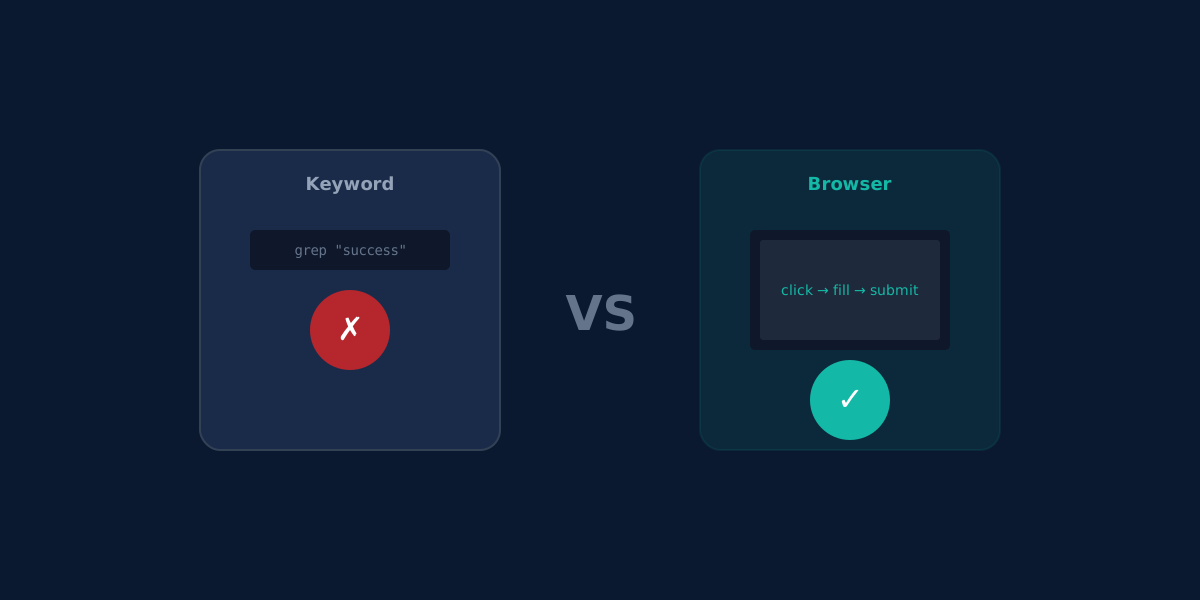
UptimeRobot vs Monitrics: Why Browser Automation Beats Keyword Monitoring
UptimeRobot fetches HTML and greps for text. Monitrics runs a real Chromium browser. Compare keyword monitoring vs Playwright browser automation.
Your checkout page returns 200 OK. UptimeRobot confirms "Order Complete" exists in the HTML. Everything looks green. But customers are calling support because the payment button does nothing when they click it.
This is the fundamental gap between keyword monitoring and browser automation -- and it is the single biggest reason teams outgrow UptimeRobot.
How UptimeRobot Keyword Monitoring Actually Works
Under the hood, UptimeRobot keyword monitoring is straightforward. It fetches the raw HTML of a URL and searches for a string. Think of it as curl | grep:
# This is essentially what UptimeRobot does
curl -s https://app.example.com/checkout | grep -q "Order Complete"

# Exit code 0 → UP
# Exit code 1 → DOWN
There is no JavaScript execution. No DOM rendering. No browser engine. The response body is treated as a flat text file, and UptimeRobot scans it for the keyword you specified.
This approach has been around since the early days of uptime monitoring, and it works well for static HTML pages. The problem is that very few production applications in 2026 are static HTML pages.
What Monitrics Browser Automation Does Differently
Monitrics launches a real Chromium browser instance via Playwright. It loads your page the same way a user's browser would: executing JavaScript, rendering the DOM, handling network requests, and processing client-side routing.
Then it goes further. It clicks buttons, fills forms, waits for elements to appear, navigates between pages, and extracts text from rendered elements. Every step is validated, and 17 browser performance metrics are captured along the way.
{
  "url": "https://app.example.com/login",
  "viewport": "1280x720",
  "timeout_ms": 15000,
  "interactions": [
    { "type": "fill", "selector": "#email", "value": "monitor@example.com", "timeout_ms": 5000 },
    { "type": "fill", "selector": "#password", "value": "{{TEST_PASSWORD}}", "timeout_ms": 5000 },
    { "type": "click", "selector": "button[type='submit']", "timeout_ms": 5000 },
    { "type": "wait_for_selector", "selector": "[data-testid='dashboard']", "timeout_ms": 10000 },
    { "type": "get_text", "selector": "h1.welcome", "var_name": "welcome_message", "timeout_ms": 5000 }
  ]
}
This is not checking if a string exists in HTML. This is proving that a user can actually log in and reach their dashboard.
The JavaScript Rendering Problem
Modern single-page applications built with React, Vue, or Angular render content client-side. When UptimeRobot fetches the page, it gets the initial HTML shell before JavaScript has executed.
Here is what UptimeRobot sees when it fetches a typical React app:
<!DOCTYPE html>
<html>
<head><title>My App</title></head>
<body>
  <div id="root"></div>
  <script src="/assets/app.a1b2c3.js"></script>
</body>
</html>
The div#root is empty. The actual content -- navigation, forms, user data, error states -- only appears after the JavaScript bundle loads, executes, and renders the component tree. UptimeRobot never sees that content because it does not run JavaScript.
Monitrics sees the fully rendered page because it runs a real browser. If your React app fails to hydrate, if a chunk fails to load, if a runtime error prevents rendering -- Monitrics catches it. UptimeRobot cannot.
Real-World Scenario: E-Commerce Checkout Flow
Consider an online store where the checkout process involves five distinct steps. Let us compare how each tool monitors this flow.
UptimeRobot Setup
You would create separate keyword monitors for each page:
| Monitor | URL | Keyword | What It Actually Tests |
|---|---|---|---|
| Product page | /products/widget | "Add to Cart" | HTML contains button text |
| Cart page | /cart | "Proceed to Checkout" | HTML contains link text |
| Checkout page | /checkout | "Place Order" | HTML contains button text |
| Payment API | /api/payments/health | "ok" | API endpoint responds |
| Confirmation | /order/confirm | "Thank you" | HTML contains success text |
Total: 5 monitors. Each runs independently. None of them actually adds an item to a cart, enters payment details, or submits an order.
If your "Add to Cart" JavaScript handler is broken, Monitor 1 still reports UP because the text "Add to Cart" exists in the HTML. The button just does nothing when clicked.
Monitrics Setup
One workflow with connected steps:
{
  "steps": [
    {
      "name": "Browse and add to cart",
      "type": "browser",
      "config": {
        "url": "https://store.example.com/products/widget",
        "viewport": "1280x720",
        "interactions": [
          { "type": "click", "selector": "button.add-to-cart", "timeout_ms": 5000 },
          { "type": "wait_for_selector", "selector": ".cart-badge[data-count='1']", "timeout_ms": 5000 }
        ]
      }
    },
    {
      "name": "Begin checkout",
      "type": "browser",
      "config": {
        "url": "https://store.example.com/cart",
        "interactions": [
          { "type": "click", "selector": "a.checkout-button", "timeout_ms": 5000 },
          { "type": "wait_for_navigation", "timeout_ms": 10000 }
        ]
      }
    },
    {
      "name": "Complete payment",
      "type": "browser",
      "config": {
        "url": "https://store.example.com/checkout",
        "interactions": [
          { "type": "fill", "selector": "#email", "value": "test@example.com", "timeout_ms": 5000 },
          { "type": "fill", "selector": "#card-number", "value": "4242424242424242", "timeout_ms": 5000 },
          { "type": "fill", "selector": "#card-expiry", "value": "12/28", "timeout_ms": 5000 },
          { "type": "fill", "selector": "#card-cvc", "value": "123", "timeout_ms": 5000 },
          { "type": "click", "selector": "#place-order", "timeout_ms": 5000 },
          { "type": "wait_for_selector", "selector": ".order-confirmation", "timeout_ms": 15000 },
          { "type": "get_text", "selector": ".order-id", "var_name": "order_id", "timeout_ms": 5000 }
        ],
        "assertions": [
          { "field": "order_id", "operator": "exists" },
          { "field": "page_load_time", "operator": "less_than", "value": 5000 }
        ]
      }
    }
  ]
}
Total: 1 workflow, 3 steps. If any step fails, you know exactly where the checkout flow breaks. The order_id variable extracted in step 3 proves the order actually went through. The page_load_time assertion ensures performance stays within acceptable bounds.
Five Problems Keyword Monitoring Cannot Solve
1. Authentication Flows
UptimeRobot cannot log into your application. It can only monitor public-facing pages. Your authenticated dashboard, admin panel, user settings, and any feature behind a login wall are invisible to keyword monitoring.
Monitrics browser automation fills in credentials, clicks the login button, handles redirects, and verifies the authenticated page loads correctly. You can even test flows that involve multi-factor authentication by integrating with test MFA endpoints.
2. Form Submissions
A contact form might display perfectly but submit to a broken API endpoint. Keyword monitoring sees the form HTML and reports success. Browser automation fills the form, submits it, and checks for the confirmation response.
3. Client-Side Validation
JavaScript validation errors, disabled submit buttons, and dynamic form states are invisible to keyword monitoring. Browser automation interacts with the actual form elements and observes whether the application responds correctly.
4. Third-Party Widget Failures
Payment processors, chat widgets, analytics scripts, and embedded maps load via JavaScript. If Stripe's checkout widget fails to load, keyword monitoring will not notice. Browser automation will fail when it tries to interact with the missing payment form.
5. Performance Degradation
A page might eventually render the right content but take 30 seconds to do so. Keyword monitoring does not measure how long the content took to appear. Monitrics captures load times, network request durations, and rendering performance -- and can assert that they stay within thresholds.
The 17 Browser Metrics Monitrics Captures
Every browser automation step collects detailed performance data:
| Category | Metrics |
|---|---|
| Timing | Page load time, DOM content loaded, first contentful paint, time to interactive |
| Network | Total requests, failed requests, total transfer size, request duration |
| DOM | Element count, document size, resource count |
| Console | JavaScript errors, warnings, log entries |
| Result | Final URL, page title, screenshot (on failure) |
These metrics are stored as timeseries data, giving you trend analysis over time. You can see if your page load time is gradually increasing before it crosses a threshold and triggers an alert.
With UptimeRobot, you get a binary result: the keyword was found, or it was not. No performance data, no trend analysis, no early warning of degradation.
Variable Passing Between Steps
One of the most powerful features of Monitrics workflows is variable passing. When a browser step extracts text using get_text, the value is stored in a variable that subsequent steps can reference.
{
  "steps": [
    {
      "name": "Create account",
      "type": "browser",
      "config": {
        "url": "https://app.example.com/signup",
        "interactions": [
          { "type": "fill", "selector": "#email", "value": "test+{{TIMESTAMP}}@example.com", "timeout_ms": 5000 },
          { "type": "fill", "selector": "#password", "value": "{{TEST_PASSWORD}}", "timeout_ms": 5000 },
          { "type": "click", "selector": "button[type='submit']", "timeout_ms": 5000 },
          { "type": "wait_for_selector", "selector": ".welcome-banner", "timeout_ms": 10000 },
          { "type": "get_text", "selector": ".user-id", "var_name": "new_user_id", "timeout_ms": 5000 }
        ]
      }
    },
    {
      "name": "Verify account via API",
      "type": "http",
      "config": {
        "url": "https://api.example.com/users/{{new_user_id}}",
        "method": "GET",
        "headers": { "Authorization": "Bearer {{API_TOKEN}}" },
        "assertions": [
          { "field": "status_code", "operator": "equals", "value": 200 },
          { "field": "body.email", "operator": "contains", "value": "test+" }
        ]
      }
    }
  ]
}
The first step creates an account via the browser and extracts the new user ID. The second step uses that ID to verify the account exists via the API. This is a connected, end-to-end test that validates both the frontend and backend.
UptimeRobot has no concept of variables, multi-step workflows, or passing data between monitors. Each monitor is an isolated check.
Pricing Comparison
Here is where the comparison gets interesting. Monitrics browser automation is not a premium add-on -- it is included in the Professional plan. UptimeRobot does not offer browser automation at any price tier.
| Feature | UptimeRobot Free | UptimeRobot Solo | UptimeRobot Team | Monitrics Starter | Monitrics Pro |
|---|---|---|---|---|---|
| Price | $0/mo | $8/mo | $34/mo | $0/mo | $19/mo |
| Monitors/Steps | 50 monitors | 10 monitors | 100 monitors | 50 steps | 100 steps |
| Check Interval | 5 min | 1 min | 1 min | 5 min | 1 min |
| Browser Automation | No | No | No | No | Yes |
| Multi-Step Workflows | No | No | No | No | Yes |
| Variable Passing | No | No | No | No | Yes |
| Team Members | 0 | 0 | 3 | 1 | 5 |
| Performance Metrics | No | No | No | No | 17 metrics |
UptimeRobot's Team plan at $34/mo gives you 100 keyword monitors with no browser automation, no workflows, and no variable passing. Monitrics Professional at $19/mo gives you 100 steps with full browser automation, multi-step workflows, variable passing, and 5 team seats.
For teams that need browser automation, there is no UptimeRobot plan to compare against -- the feature simply does not exist. The closest equivalent would be combining UptimeRobot with a separate browser testing tool, which adds both cost and operational complexity.
Enterprise Tier
For larger teams, Monitrics Enterprise at $49/mo provides unlimited steps with 30-second check intervals. UptimeRobot's Enterprise plan is $64/mo for 200 monitors at 30-second intervals, still without browser automation.
| UptimeRobot Enterprise | Monitrics Enterprise | |
|---|---|---|
| Price | $64/mo | $49/mo |
| Monitors/Steps | 200 | Unlimited |
| Interval | 30 sec | 30 sec |
| Browser Automation | No | Yes |
Migration Path: UptimeRobot to Monitrics
If you are currently relying on UptimeRobot keyword monitors, moving to Monitrics browser automation is a practical process:
Step 1: Audit your current monitors. List every keyword monitor and categorize them by the user flow they are trying to validate. You will likely find clusters of monitors that all relate to the same workflow (login, checkout, onboarding).
Step 2: Design workflows. Group related monitors into multi-step workflows. Five individual page checks often collapse into a single workflow with three to five steps.
Step 3: Add browser interactions. For each step, define the interactions a real user would perform: clicking buttons, filling forms, waiting for content, and extracting values.
Step 4: Set assertions. Define what success looks like. This might be the presence of a specific element, a text value matching a pattern, or a page load time staying under a threshold.
Step 5: Run in parallel. Keep your UptimeRobot monitors active while you validate your Monitrics workflows. Once you are confident in the new setup, sunset the keyword monitors.
Most teams find that 10 to 20 UptimeRobot keyword monitors map to 3 to 5 Monitrics workflows with significantly better coverage.
When Keyword Monitoring Is Enough
To be fair, keyword monitoring has its place. If you are monitoring a static marketing page, a status page, or a simple API health endpoint, a basic HTTP check with keyword validation is perfectly adequate.
The problems arise when you try to use keyword monitoring to validate dynamic, interactive applications. Login flows, checkout processes, dashboard rendering, form submissions, and any feature that requires JavaScript execution -- these need a real browser.
The question is not whether keyword monitoring is bad. It is whether keyword monitoring is sufficient for what you are building. For most modern web applications, it is not.
The Bottom Line
UptimeRobot's keyword monitoring answers one question: "Does this text appear in the HTML response?"
Monitrics browser automation answers a different question: "Can a real user complete this workflow?"
The first question tells you if your server is responding. The second tells you if your product is working. For any team running a modern web application, the distinction matters.
Related Articles
- UptimeRobot vs Monitrics: Workflow Cost Comparison - How 50 Monitrics steps replace 50 UptimeRobot monitors at lower cost
- UptimeRobot Alternative: Browser Automation for Less - Full feature and pricing breakdown
- Variables and Assertions: What UptimeRobot Cannot Do - Dynamic data extraction and conditional validation
- UptimeRobot vs Monitrics: Complete Comparison - Every feature, every plan, side by side
Ready to monitor what actually matters? Start with Monitrics for free -- 50 steps, no credit card required. See what browser automation catches that keyword monitoring misses.
Related Articles
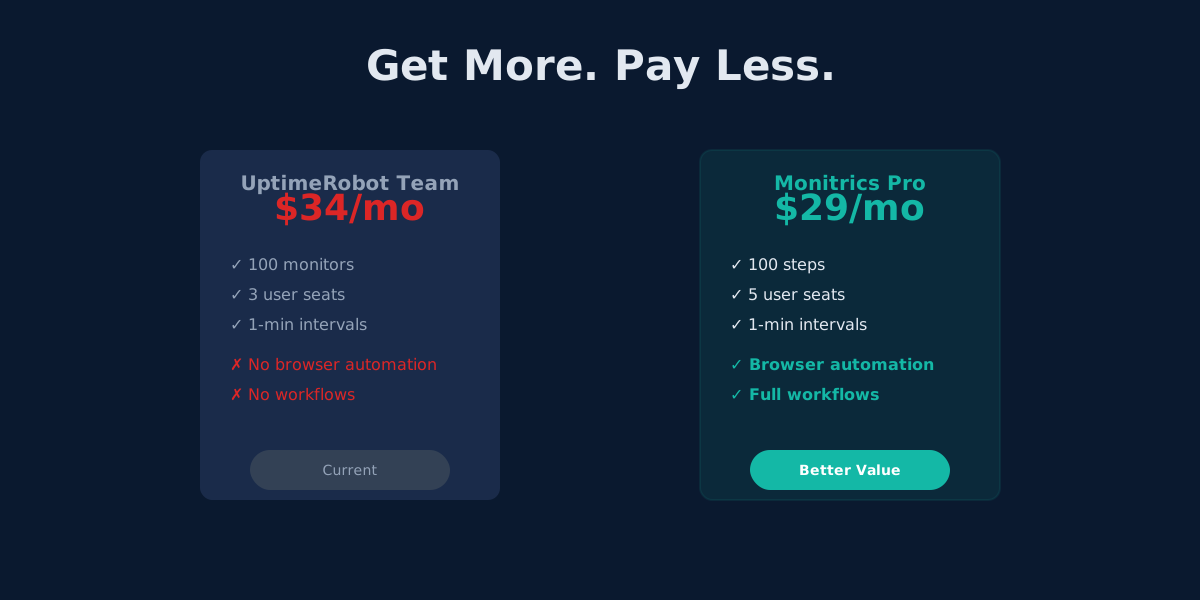
UptimeRobot Alternative: Browser Automation at Half the Price
Monitrics Professional costs $19/mo with browser automation included. UptimeRobot Team costs $34/mo without it. The math speaks for itself.
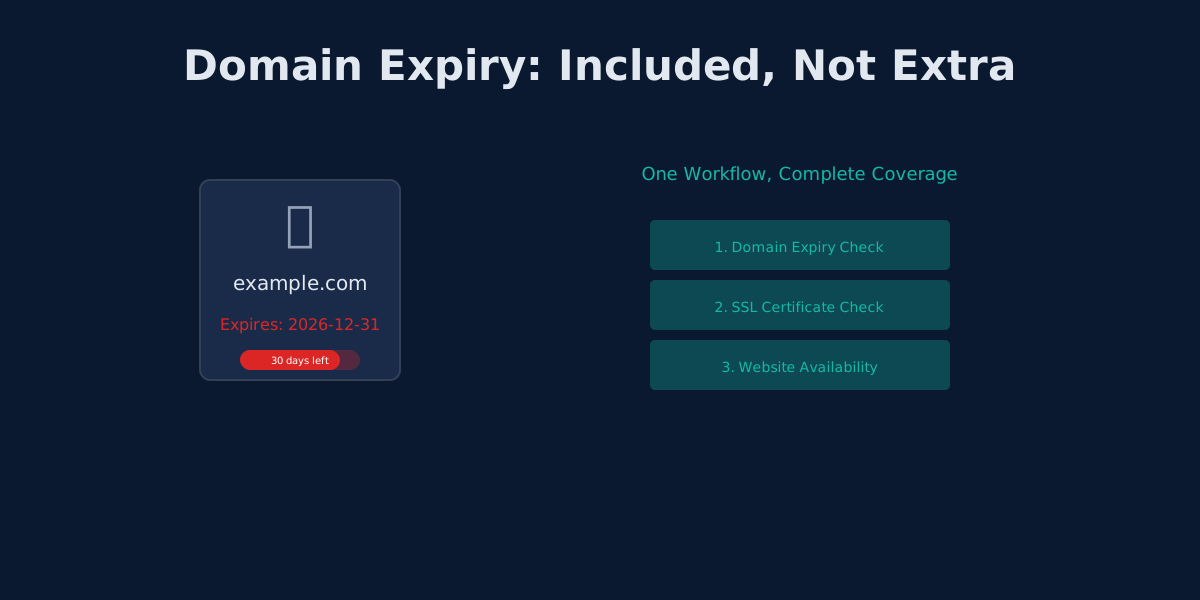
UptimeRobot's Domain Expiry Problem: Why Bundled Monitoring Wins
UptimeRobot separates domain, SSL, and HTTP monitoring. Monitrics bundles them into one workflow. Here's why that matters.
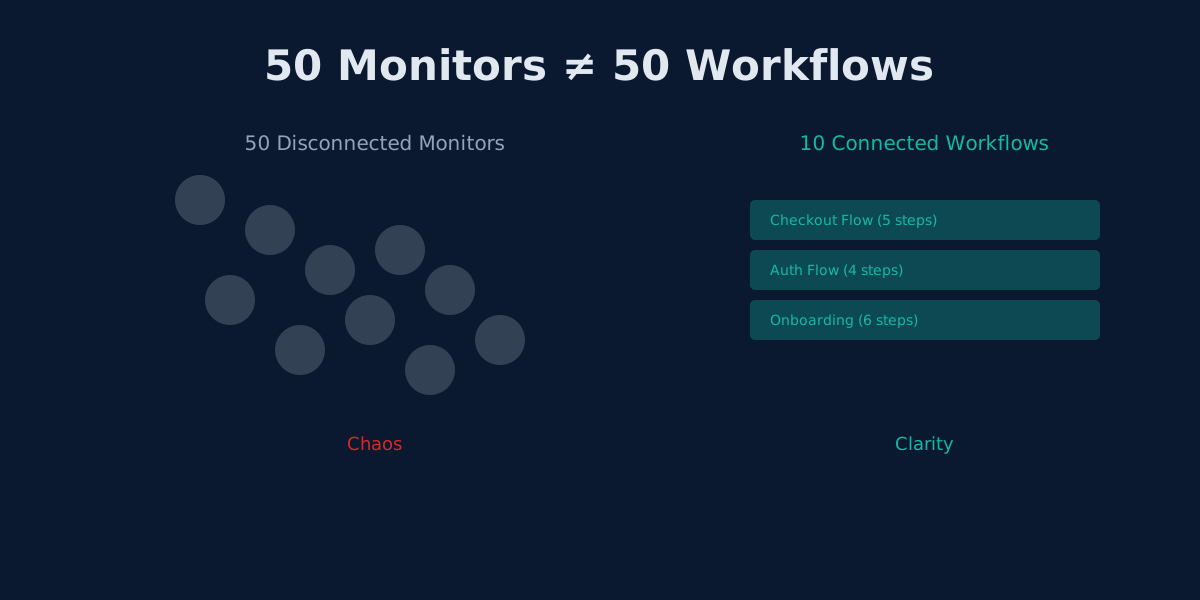
The Hidden Cost of UptimeRobot's Solo Plan: Pay More, Get Less
UptimeRobot Solo costs $8/mo but gives only 10 monitors—40 fewer than the free plan. Here's why that math doesn't work.