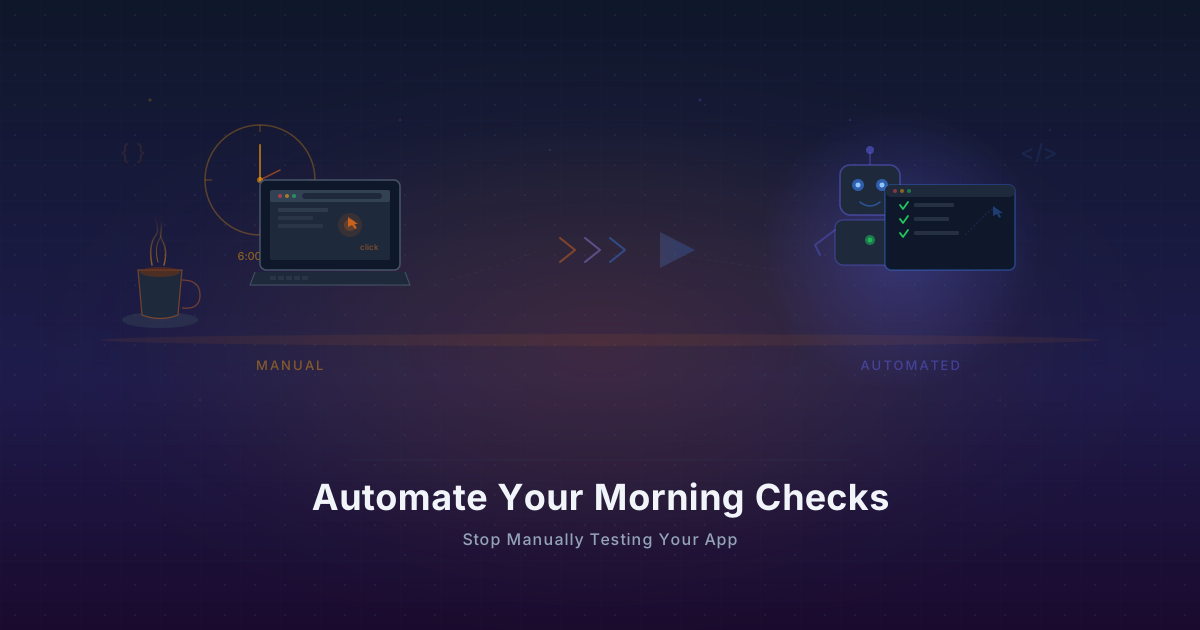
Automate Your Morning Checks: Stop Manually Testing Your App
Solo founders waste 15-30 minutes every morning clicking through their app. Automate those checks with browser workflows that run every minute.
You open your laptop. Coffee in hand, you navigate to your app. Click login. Wait for the dashboard to load. Scroll down to check the latest data. Click over to the billing page. Make sure Stripe is still processing. Open a new tab, hit your API endpoint, confirm it returns a 200. Maybe check the admin panel while you are at it.
Twenty minutes gone. Every. Single. Day.
If you are a solo founder or part of a small team running a SaaS, this ritual probably feels familiar. It is not paranoia -- it is earned anxiety. You have been burned before. That one morning you skipped the check, a broken deploy had been silently failing for six hours. So now you check. Every morning. Without fail.
But what if your morning checks ran themselves?
The Real Cost of Manual Morning Checks
Let's do some uncomfortable math.
Say your morning check routine takes 20 minutes. That feels modest -- many founders spend closer to 30. But let's be conservative.
- 20 minutes per day x 365 days = 7,300 minutes per year
- That is 121 hours -- more than three full work weeks
Three weeks of your year, spent clicking through the same screens, verifying the same flows, squinting at the same dashboards. And that assumes you only check once a day. Many founders check again after lunch. Some check before bed.
The time cost is real, but the cognitive cost might be worse. Those 20 minutes are not low-energy busywork. They require focus. You are looking for subtle signs that something is wrong. A number that seems off. A page that loads a beat too slowly. A form that throws an unexpected error. By the time you finish, your sharpest morning energy has been spent on verification instead of building.
There is also a hidden cost: the checks you skip. You always check login and the dashboard. But do you check the onboarding flow every morning? The password reset page? The settings page where users update their payment method? Probably not. You check the critical path and hope the rest is fine.
Automated browser workflows check everything, every time, without fatigue or shortcuts.
What Browser Automation Actually Does
When we talk about browser automation for monitoring, we are talking about a real browser -- Chromium, specifically -- executing the same actions a human would. Under the hood, Monitrics uses Playwright, the same framework that engineering teams at Microsoft, Google, and thousands of startups use for end-to-end testing.
The difference is that instead of running these checks in a CI pipeline after a deploy, they run continuously. Every minute, every five minutes, whatever interval you choose. From multiple regions around the world.
Here is what that means in practice:
- A real Chromium browser instance launches in a cloud region you choose
- It navigates to your app's URL
- It performs a sequence of interactions -- clicking buttons, filling in forms, waiting for elements to appear
- It extracts text from the page to verify that real data loaded
- It measures performance at every step -- time to first byte, DOM content loaded, largest contentful paint
- If anything fails or takes too long, you get an alert
This is not a synthetic ping. It is not an HTTP request checking for a 200 status code. It is the closest thing to having a human click through your app around the clock.
Turning Your Morning Checklist Into a Workflow
Let's take a typical morning routine and convert it step by step.
Your manual checklist
Most solo founders have a mental checklist that looks something like this:
- Go to the app login page
- Enter email and password
- Click "Sign In"
- Wait for the dashboard to load
- Verify that the main data widget shows recent data
- Navigate to the billing page
- Confirm the subscription status is "Active"
- Hit the public API endpoint and check the response
- Check that the help docs page loads
The automated version
Each of those manual steps maps directly to a browser interaction:
| Manual step | Automated interaction |
|---|---|
| Go to login page | Navigate to URL |
| Enter credentials | fill on email and password fields |
| Click "Sign In" | click on the sign-in button |
| Wait for dashboard | wait_for_selector on dashboard element |
| Verify recent data | get_text and assert value is not empty |
| Navigate to billing | click on billing nav link |
| Confirm "Active" status | get_text and assert contains "Active" |
| Check API response | Separate HTTP step in the same workflow |
| Check help docs | Separate HTTP step checking for 200 |
The translation is nearly one-to-one. If you can describe what you click and what you look for, you can automate it.
Example Workflow: The SaaS Morning Check
Let's build a concrete example. Imagine you run a project management SaaS. Your morning check verifies that users can log in, see their projects, and that billing is working.
Step 1: Login flow (Browser step)
Configure a browser step that navigates to your login page and authenticates:
{
  "url": "https://app.yourproduct.com/login",
  "timeout_ms": 15000,
  "viewport": "1280x720",
  "interactions": [
    {
      "type": "fill",
      "selector": "input[name='email']",
      "value": "monitor@yourproduct.com",
      "timeout_ms": 5000
    },
    {
      "type": "fill",
      "selector": "input[name='password']",
      "value": "{{MONITOR_PASSWORD}}",
      "timeout_ms": 5000
    },
    {
      "type": "click",
      "selector": "button[type='submit']",
      "timeout_ms": 5000
    },
    {
      "type": "wait_for_selector",
      "selector": "[data-testid='dashboard']",
      "timeout_ms": 10000
    }
  ]
}
A few things to note here. You should create a dedicated monitoring account in your app -- do not use your personal credentials. This account should have realistic data so the dashboard is not empty. And data-testid attributes are your best friend for stable selectors that will not break when you redesign your UI.
Step 2: Verify dashboard data (Browser step)
Once logged in, extract text from key elements to confirm real data loaded:
{
  "url": "https://app.yourproduct.com/dashboard",
  "timeout_ms": 15000,
  "viewport": "1280x720",
  "interactions": [
    {
      "type": "wait_for_selector",
      "selector": "[data-testid='project-count']",
      "timeout_ms": 8000
    },
    {
      "type": "get_text",
      "selector": "[data-testid='project-count']",
      "var_name": "projectCount",
      "timeout_ms": 5000
    },
    {
      "type": "click",
      "selector": "[data-testid='nav-billing']",
      "timeout_ms": 5000
    },
    {
      "type": "wait_for_selector",
      "selector": "[data-testid='subscription-status']",
      "timeout_ms": 8000
    },
    {
      "type": "get_text",
      "selector": "[data-testid='subscription-status']",
      "var_name": "billingStatus",
      "timeout_ms": 5000
    }
  ]
}
With get_text, you capture the actual content displayed on the page. You can then add assertions to verify that projectCount is not "0" or that billingStatus contains "Active". This catches the subtle bugs that a simple uptime check misses entirely -- the page loads fine, returns a 200, but the data is wrong or missing.
Step 3: API health check (HTTP step)
Add an HTTP step to the same workflow to verify your API responds correctly:
{
  "method": "GET",
  "url": "https://api.yourproduct.com/v1/health",
  "timeout_ms": 5000,
  "headers": {
    "Authorization": "Bearer {{API_TOKEN}}"
  }
}
Add an assertion that the response status is 200 and the body contains "status":"healthy". This combines browser-level and API-level checks into a single workflow that mirrors exactly what your users experience.
Step 4: Public pages (HTTP steps)
Round out the workflow with quick HTTP checks on your public-facing pages:
- Marketing site homepage -- assert 200
- Documentation pages -- assert 200 and body contains your product name
- Status page -- assert 200
These are lightweight checks that add negligible time to your workflow but catch DNS issues, CDN failures, and deployment mistakes that break public pages.
Browser Interactions Available
Monitrics supports six browser interactions that cover the vast majority of user flows. Here is what each one does and when to use it:
click
Clicks an element matching a CSS selector. Use it for buttons, links, navigation items, and any clickable element.
{ "type": "click", "selector": "button.submit", "timeout_ms": 5000 }
fill
Types text into an input field. Use it for login forms, search boxes, and any text input.
{ "type": "fill", "selector": "input[name='email']", "value": "user@example.com", "timeout_ms": 5000 }
wait_for_selector
Pauses execution until an element appears on the page. Use it after navigation, after clicking something that triggers a page transition, or when waiting for dynamically loaded content.
{ "type": "wait_for_selector", "selector": "[data-testid='dashboard']", "timeout_ms": 10000 }
wait_for_navigation
Waits for a full page navigation to complete. Use it after clicking a link that triggers a new page load rather than a client-side route change.
{ "type": "wait_for_navigation", "timeout_ms": 10000 }
wait_for_timeout
Pauses for a fixed duration. Use it sparingly -- prefer wait_for_selector when possible. But sometimes you need a brief pause for animations or debounced updates to settle.
{ "type": "wait_for_timeout", "timeout_ms": 2000 }
get_text
Extracts the text content of an element and stores it in a variable. This is the most powerful interaction for monitoring because it lets you verify what the user actually sees, not just whether the page loaded.
{ "type": "get_text", "selector": "h1", "var_name": "heading", "timeout_ms": 5000 }
Combine get_text with assertions to catch content-level failures. A page can return a 200 status code while displaying "Error: Failed to load data" in the body. Only get_text with an assertion catches that.
Running Every Minute vs Every 5 Minutes
How often should your morning check run? The answer depends on how quickly you need to know about failures and which plan you are on.
Free tier: 5-minute intervals
The Monitrics Starter plan is free and includes 50 steps with 5-minute check intervals and 7-day data retention. For many solo founders just getting started, this is enough. A 5-minute interval means you will know about a failure within 5 minutes of it happening, which is a massive improvement over finding out during your morning check (or worse, from a customer email).
Professional: 1-minute intervals
At $19/month, the Professional plan drops to 1-minute intervals with 100 steps, 30-day data retention, browser automation support, checks from 12+ regions, and up to 5 team members. One-minute intervals mean that by the time you open Slack, the alert is already there. For any revenue-generating SaaS, the difference between a 5-minute outage detection and a 1-minute detection is real money.
Enterprise: 30-second intervals
At $49/month, the Enterprise plan offers 30-second intervals with unlimited steps, 90-day data retention, and unlimited everything else. This is for products where every second of downtime has a measurable cost.
Browser automation -- the feature that powers login flows, dashboard checks, and user journey monitoring -- requires the Professional plan or above. The free tier supports HTTP, TCP, ICMP, and DNS checks, which are still valuable for basic uptime monitoring.
Getting Notified Only When Something Breaks
Automated checks are only useful if you actually hear about failures. The goal is zero noise when things work and instant alerts when they do not.
Choose your channel
Monitrics supports multiple notification channels:
- Email -- reliable baseline, good for non-urgent alerts
- Slack -- where most teams already live, great for instant visibility
- PagerDuty -- for on-call rotations and escalation policies
- Webhooks -- pipe alerts into any system you use
- Telegram -- for founders who prefer mobile-first notifications
On the free tier, you get one notification channel. Professional and Enterprise support multiple channels so you can layer them -- Slack for awareness, PagerDuty for critical issues, email as a backup.
What makes a good alert
The workflow you built above will alert you when:
- The login page does not load within 15 seconds
- The email or password field is missing from the DOM
- The submit button click does not trigger navigation
- The dashboard element never appears after login
- The extracted project count is empty or zero
- The billing status does not contain "Active"
- The API health endpoint returns anything other than 200
- Any step exceeds its configured timeout
Each of these maps to a real problem that would affect your users. There are no false alarms from transient network blips because you can configure retry logic and failure thresholds. If the check fails once, it retries. If it fails twice in a row, then you get the alert.
This is the key difference from your manual morning check: the automated workflow does not just tell you "the app is up." It verifies that the app works the way your users need it to work, and it does this around the clock.
From 20 Minutes to Zero
Let's revisit the math from the beginning:
- Before: 20 minutes every morning, 121 hours per year, plus the anxiety of wondering if you checked everything
- After: zero minutes, because the workflow already ran 288 times since you went to sleep (at 5-minute intervals) or 1,440 times (at 1-minute intervals)
You wake up, glance at your phone, see no alerts, and start building. If something did break at 3 AM, you already got a Slack notification and can jump straight to fixing it instead of discovering it during your morning ritual.
The setup takes about 30 minutes -- roughly the same as two morning checks. From that point forward, you never manually test those flows again. You can redirect that time and mental energy toward the work that actually grows your product.
If you are ready to turn your morning checklist into an automated workflow, create a free Monitrics account and start with the basics. The free tier covers HTTP and DNS checks. When you are ready for browser automation and 1-minute intervals, the Professional plan is $19/month -- less than what your time is worth for a single morning check.
Related Articles
- Don't Just Check Status Codes: Use Assertions to Catch Real Bugs -- learn how to add meaningful assertions to your workflows so you catch content-level failures, not just uptime.
- The Complete Monitoring Checklist for Solo SaaS Founders -- a practical checklist covering everything from DNS to user flows, designed for teams of one.
- From Side Project to SaaS: When You Need Real Monitoring -- the signals that your hobby project has outgrown manual checks and needs automated monitoring.
Related Articles
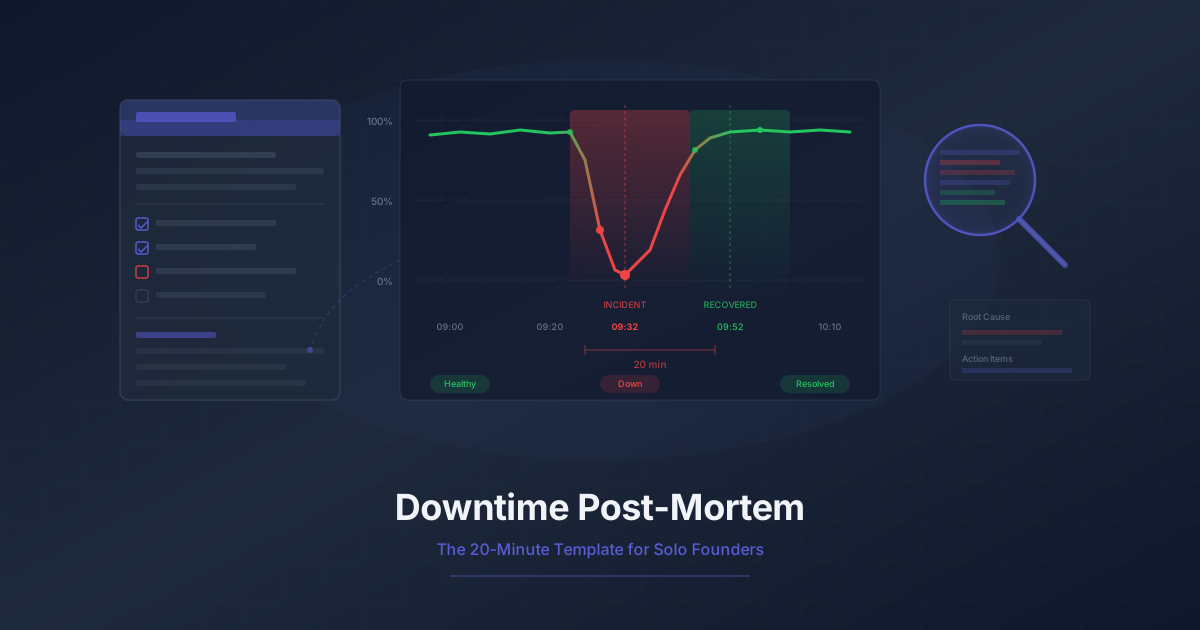
Downtime Post-Mortem Template for Solo Founders
A streamlined 20-minute post-mortem process for one-person teams. Use monitoring data to reconstruct what happened and prevent it from recurring.
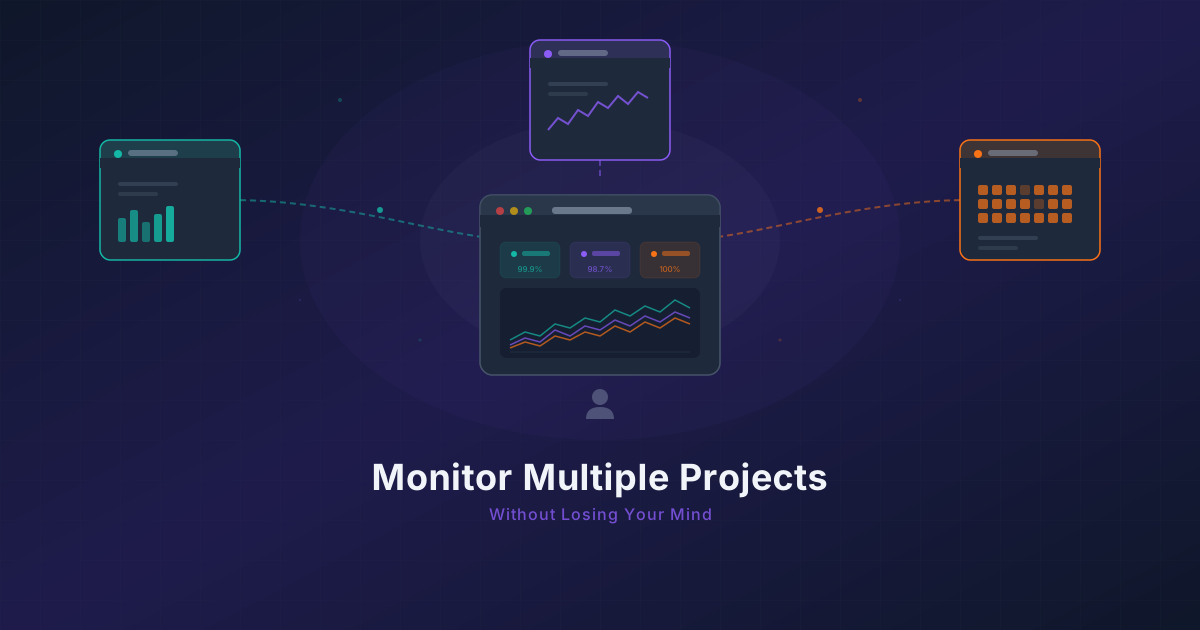
Running 3 Projects? How to Monitor Them All Without Losing Your Mind
Most indie hackers run multiple projects. Learn how to centralize monitoring across all of them without tool sprawl or alert chaos.
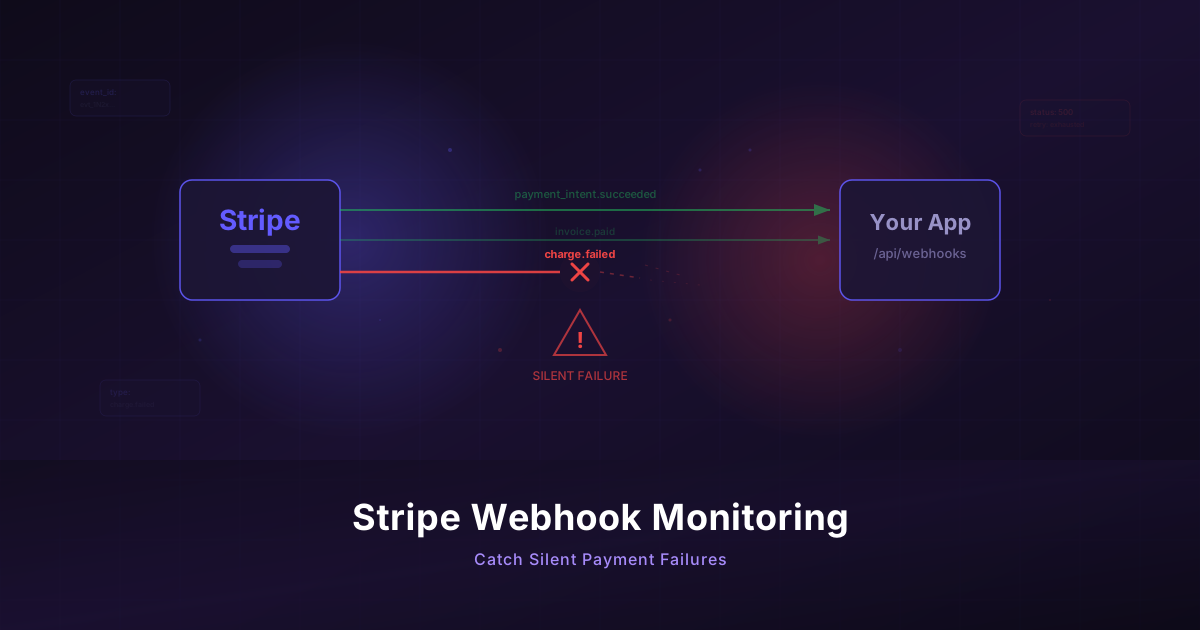
Monitor Your Stripe Webhooks Before They Silently Fail
Stripe webhooks fail invisibly and cost you revenue. Build a monitoring workflow to catch payment failures before your customers notice.